Instructional Technology
Instructional Technology in Homewood City Schools
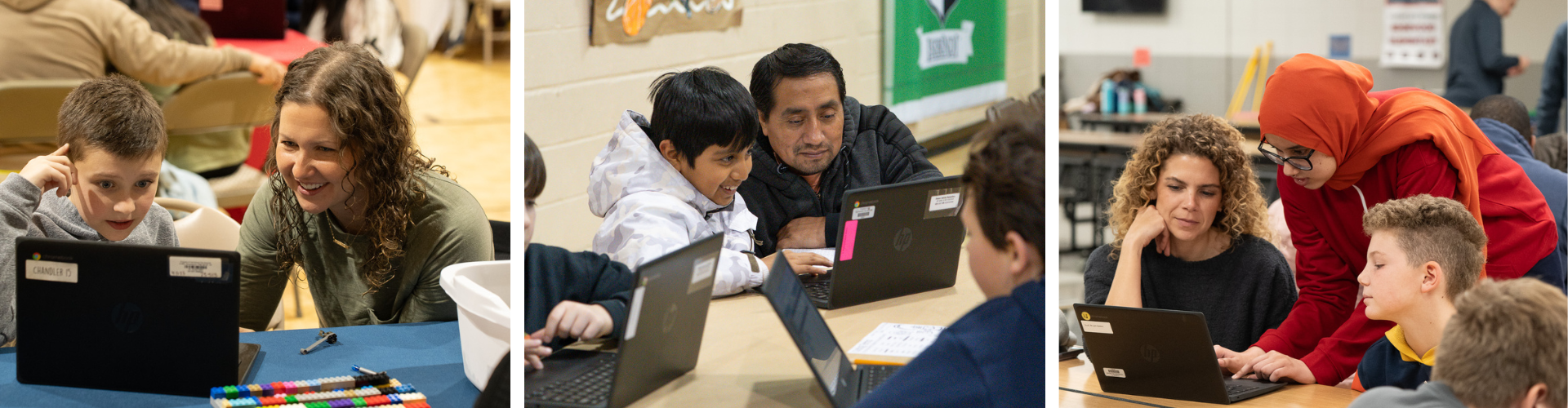
Pictured above: 4th grade families participating in our annual Family Code Night
Frequently Asked Questions
-
Our district does not set minute-by-minute daily or weekly screen time limits. Instead, we view technology through the lens of Screen Value vs. Screen Time, prioritizing high-impact instructional value over passive consumption.
School principals oversee alignment with these guidelines, ensuring staff adhere to district-wide best practices. These include prohibiting Chromebook use during indoor recess and upholding a district-wide belief that devices should not be incentivized as a reward. -
The specific digital tools, apps, and platforms a student can access vary by grade level and course to ensure they are age-appropriate and directly support specific learning targets. Parents are always welcome to ask their child’s teachers about the exact digital resources utilized in their specific classrooms.
To ensure every digital tool meets our high standards for safety and education, Homewood City Schools utilizes a standardized vetting process established by our Instructional Technology Advisory Committee (ITAC). Before any new software, application, or digital resource can be introduced to students, teachers must submit a formal request. Building administrators and technology specialists then evaluate the tool against our Instructional Value Criteria to officially approve or deny its use. This process ensures that all technology aligns with our core district beliefs and actively protects student data.
-
Our district does not track screen time by the cumulative minute or hour, as digital tools are integrated dynamically throughout the day depending on the specific lesson plan or learning target. Because device usage varies significantly by grade level and subject matter, we do not have a flat baseline of daily "screen hours."
Our general framework by grade level includes:
- Elementary (K–5): Device usage is minimal, highly structured, and strictly supplemental. Chromebooks remain at school at the end of the day to maintain a healthy boundary between school and home.
- Middle & High School (6–12): Device integration increases at the secondary level as we focus on preparing students for a digital world. Students use technology to develop essential skills in research, digital citizenship, collaborative project management, and technological literacy.
-
In accordance with Alabama state law, the FOCUS Act, all Homewood City Schools maintain a strict, "bell-to-bell" cell phone policy.
To support a distraction-free learning environment, the policy is structured as follows:
-
Turned Off and Stored Away: From the morning bell until the final dismissal bell (including during lunch, class transitions, and recess), all personal wireless devices—including cell phones, smartwatches, and wireless earbuds—must be turned completely off and stored off the student's person (such as in their backpack, locker, or a designated school storage area).
-
Permitted Exceptions: Under state law, exceptions are made for students who require a device for documented medical purposes (such as glucose monitoring) as outlined in an Individualized Education Program (IEP), 504 Plan, or Individualized Health Plan. Devices may also be accessed in the event of an emergency that threatens immediate safety.
Students and families are encouraged to review this policy in our district’s Code of Conduct.
-
-
Yes! Read the Student Technology Agreement for more details
Parent Technology Resources
-
What is PowerSchool?
PowerSchool is the School Information System (SIS) for the state of Alabama. It is an online platform that is used to access and monitor your child's academic progress and performance. With PowerSchool, parents can create accounts that provide you with comprehensive insights into your child's attendance records, grades, and assignments.
How do I set up an account?
Setting up your PowerSchool Parent Portal Account
How do I access PowerSchool?
You can access via the web browser or by downloading the mobile app.
-
ParentSquare is a unified, secure, and easy-to-use communication tool that allows us to streamline our communication with our parents. Whether it’s important announcements, updates from a teacher, or upcoming events, ParentSquare is our one-stop-shop for staying connected with everything happening in Homewood City Schools.
How do I set up an account?
- Download the App! - It’s easy to stay in the loop with the ParentSquare app. Download it now for iOS or Android devices.
- Activate Your Account - Sign up on the Parent Square website or via the ParentSquare app. (You must use the email address or cell phone number provided during school registration.)
- Set Preferences - If you’re using the app, select the menu in the top left of the screen to set your language preferences and how often you want to receive notifications. If you’re using the website, select your name in the upper right.
- Sync Your Calendar - Select ‘Events’ from the bottom of the screen in the app and then ‘Subscribe’ to sync district, school, classroom or group calendar to your phone’s calendar.
- Find Teachers - Select ‘School Directory’ from the ‘More’ menu at the bottom right of the app for the names and positions of teachers and staff. If you’re using the website, select ‘Directory’ from the left sidebar.
- Comment or Reply - You can select ‘Comment’ in the app or on the website to privately ask a question about the post that your teacher or school sent. Comments and replies in ParentSquare are not publicly posted.
- Get in Touch - ‘Messages’ on the bottom of the screen in the app (or the sidebar on the website) lets you privately communicate with staff.
How do I access ParentSquare?
You can access ParentSquare through a web browser or the mobile app. -
Schoology is an online learning platform that our school uses to manage coursework, assignments, and communication. It helps both students and parents stay organized and informed.
How do I set up an account?
Click here to create your Schoology parent account
You will need the Access ID for each child to create an account. Contact your school if you need the Access ID.
Parent Guide for SchoologyHow do I access Schoology?
You can access Schoology through a web browser or the mobile app
Student Link -
ClassLink is a single sign-on platform that helps students and teachers access all their educational resources with one login. ClassLink simplifies the learning experience by providing a one-stop shop for all digital tools and resources.
It saves time and reduces the hassle of remembering multiple passwords.
How do I create an account?
Your child will log into ClassLink using their school-provided credentials. Once logged in, they can access all their educational apps, assignments, and resources from a single dashboard.
How do I access ClassLink?
-
eFunds for Schools is an online payment system that our school uses to manage and process various school-related payments. It offers a convenient way for you to handle payments securely.How do I set up an account?
Setting up your e~Funds for Schools account
How do I access e~Funds?
-
GoFan is an online ticketing platform that our school uses to sell tickets for various events, such as sports games, concerts, and other school activities.
How do I create an account?
You don’t have to create an account to use GoFan, but if you use it often creating an account will save your credit card information and allow faster access.
How do I access GoFan?
You can access GoFan through a web browser or by downloading the GoFan app on your smartphone.
-
Homewood High School and Homewood MIddle School use School Shares for various extracurricular fees and optional purchases.
How do I create an account?
You do not need to create an account to use School Shares.
How do I access School Shares?
You canvisit this link and search “Homewood High School” or “Homewood Middle School” to view options and make purchases
-
LinqConnect is an online platform that our school uses to manage nutrition and cafeteria services. It helps parents easily manage their child's meal accounts.
How do I set up an account?
*Please note that you will only need your child's name, date of birth, and grade to add them to your account.
How do I access Linq Connect?
You can access LinqConnect through a web browser or the mobile app.
-
Since 1985, the Lifeline program has provided a discount on phone service for qualifying low-income consumers to ensure that all Americans have the opportunities and security that phone service brings, including being able to connect to jobs, family and emergency services. Lifeline is part of the Universal Service Fund. The Lifeline program is available to eligible low-income consumers in every state, territory, commonwealth, and on Tribal lands. To learn more or to apply, click this link.
